The Hub
The hub is the home page that ties the studio together. Every tool opens from here and runs under the hub's single address; the hub proxies each module, so one URL is all you need (and all you can reach from another computer — module ports listen on the board only).
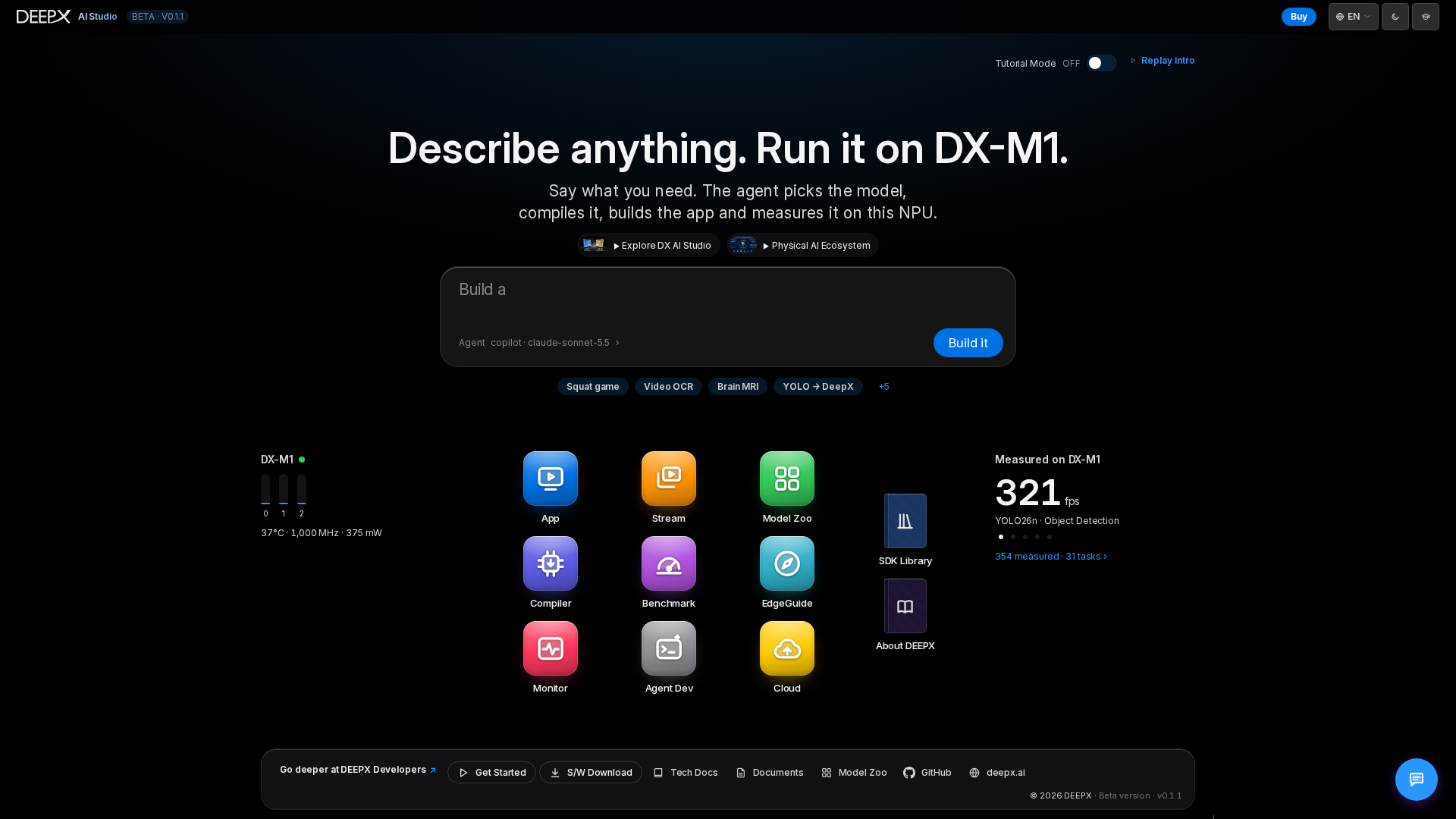
Layout
- Prompt box — Describe anything. Run it on DX-M1. Write what you want in plain words and click Build it. The hub first shows recommended tool routes or an agent plan — it does not immediately compile, run inference, or start an agent. Select a route card to open its tool, or choose the agent execution button to start the proposed work on the home page, where you follow activity and answer questions. Example chips fill in a request for you to review; the Agent row picks the coding agent, model, effort and mode. The agent and model are saved as the Studio agent and shared with Agent Dev and the chat.
- Tool cards — the nine tools plus SDK Library and About DEEPX. Cards show live facts where a module can count them (for example 26 demos · 12 groups for DX App, the catalogue size for Model Zoo). Click a card to open the tool; the hub chrome stays in place.
- DX-M1 widget (left) — the NPU in this computer: cores, temperature, clock and power. Click it to open DX Monitor.
- Measured on DX-M1 (right) — a model's FPS measured on this device, and how many models and tasks were measured. Click it to open DX Benchmark.
- Go deeper at DEEPX Developers — the bar at the bottom links to Get Started, S/W Download, Tech Docs, Documents, Model Zoo, GitHub and deepx.ai.
- Explore DX AI Studio and Physical AI ecosystem — the two chips under the heading open the platform overview (every module at a glance) and the DEEPX ecosystem page.
If a module is not up yet, opening it shows a loading state; the hub keeps retrying for about 30 seconds, then shows Module unavailable with Retry.
For example, enter "compile yolo26n to DXNN", press Build it, then select the Compiler route card. Review the model and config in DX Compiler before compiling. If the suggested route is not what you intended, edit the request or choose the agent option; an agent needs an installed, authenticated coding CLI.
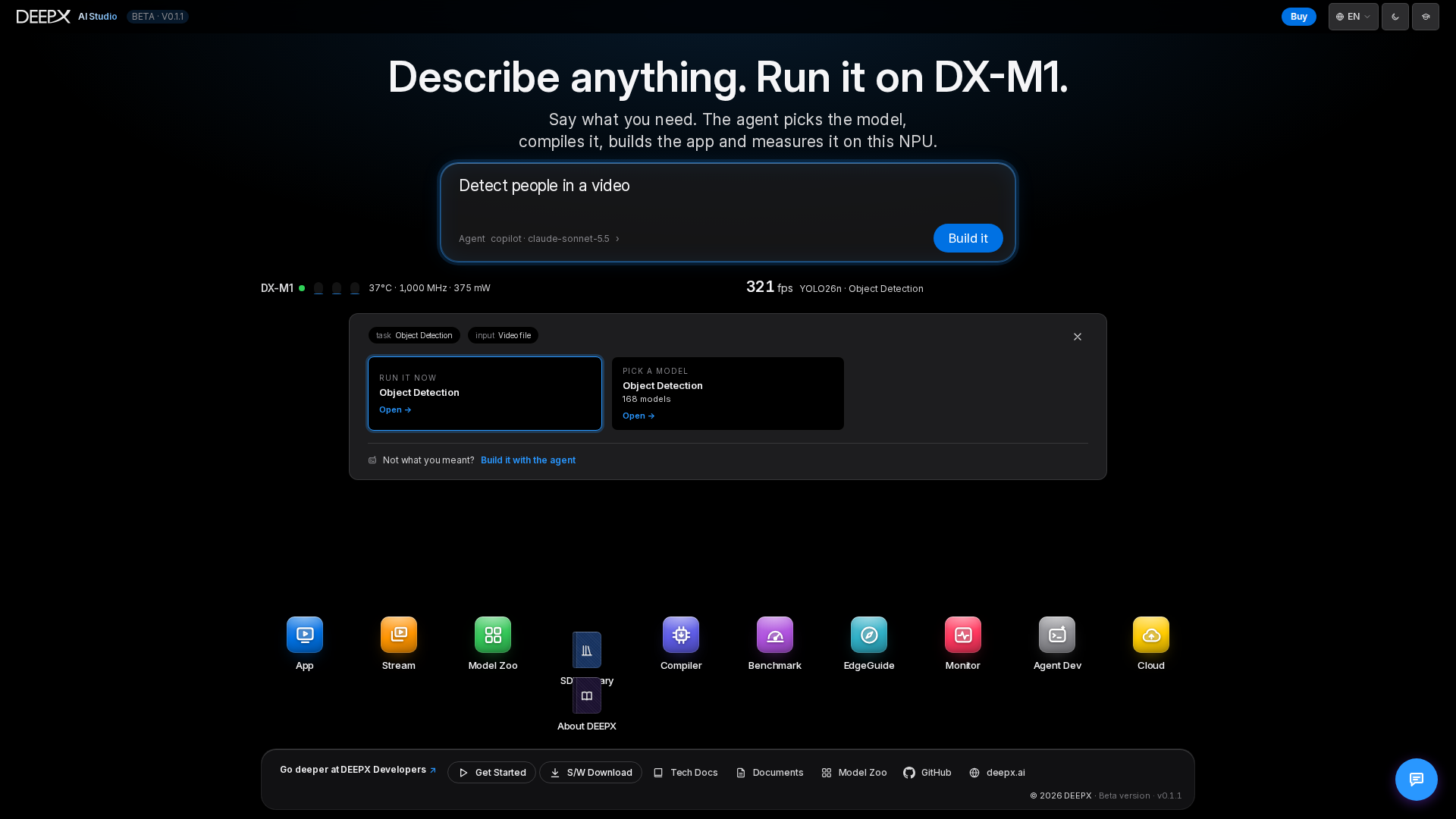
Top bar
From left to right on the right side:
- Buy — the DEEPX store.
- Language — the six languages (see below).
- Theme — cycles dark → light → system.
- Connected browsers — appears when the studio is reachable from the network. It lists the browsers paired from other computers (browser, IP, last active, paired date) with Disconnect; on the board it also shows the address other computers open. See Remote access & security.
- Tutorial — opens the tutorial contents for the current view.
The global DX AI Studio Help assistant is the round chat button at the bottom right of every view. Its top line says which AI answers. With nothing set, it answers through the coding agent you are signed in to (claude, copilot, cursor …), the same one Home and Agent Dev use. Change asks one question — a coding agent on this PC, your local LLM server, or a cloud API key (OpenAI, Anthropic, Google, GitHub Models or a custom endpoint) — and tests the connection before saving; Back to automatic returns to the signed-in agent. See SDK Library & About. Its header also links to the web DEEPX Agent.
Guided tutorials
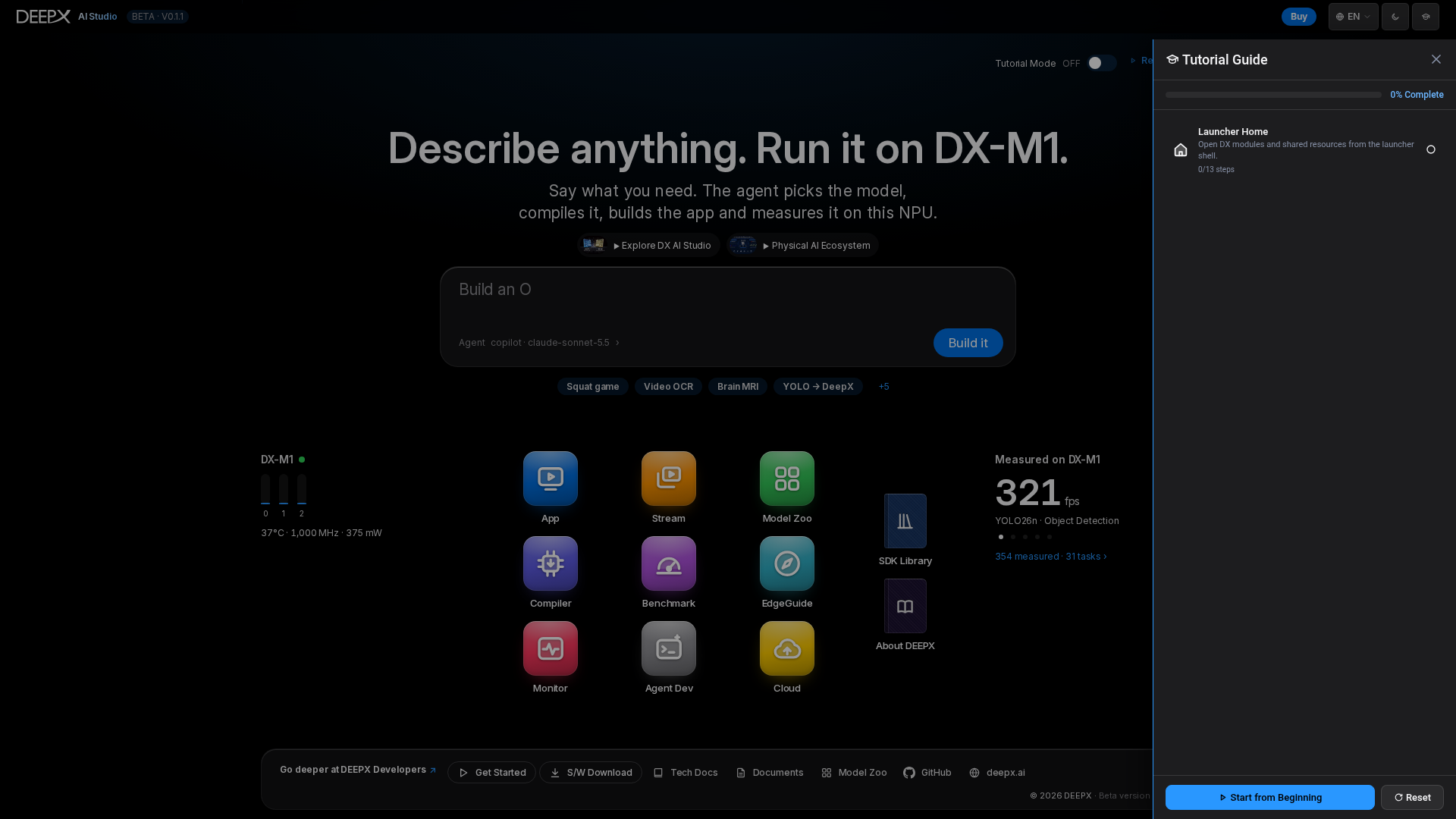
Tutorial Mode (the switch at the top right of the home, next to Replay Intro) is on by default. With it on, the first visit to the home runs a short walkthrough, and opening a tool opens that tool's tutorial contents — pick a section or Start from Beginning. Steps have Prev / Skip / Next (arrow keys work too); Esc ends the tour. The Tutorial button in the top bar opens the contents at any time.
Navigating
- Click a card or an icon in the left module rail to enter a tool. Use Hub at the bottom of the rail to return home; the top page tabs select views within the current tool (for example Models or Graph Composer inside DX App).
- The current tool and view are reflected in the URL, so links are shareable and reload-safe (for example, a DX EdgeGuide recommendation or an SDK Library document).
- Keyboard shortcuts —
Alt+1…9open a tool directly.Esccloses the topmost thing first — the chat, the tutorial, a search, a dialog — and only then leaves the tool.
Language
The entire studio is available in 6 languages — English, 한국어, 日本語, 简体中文, 繁體中文, Español. A first visit opens in your browser's language (English when it is none of these). Switch from the top bar at any time; every open tool follows, and the choice persists and wins over the browser.