DX Compiler
Compile a trained ONNX model into a .dxnn binary that runs on the DEEPX NPU — with
a guided config wizard, live graph visualization, quantization tuning and diagnosis,
subgraph (range) compile, re-quantization, and an optional AI agent that does the whole
thing for you.
What you can do
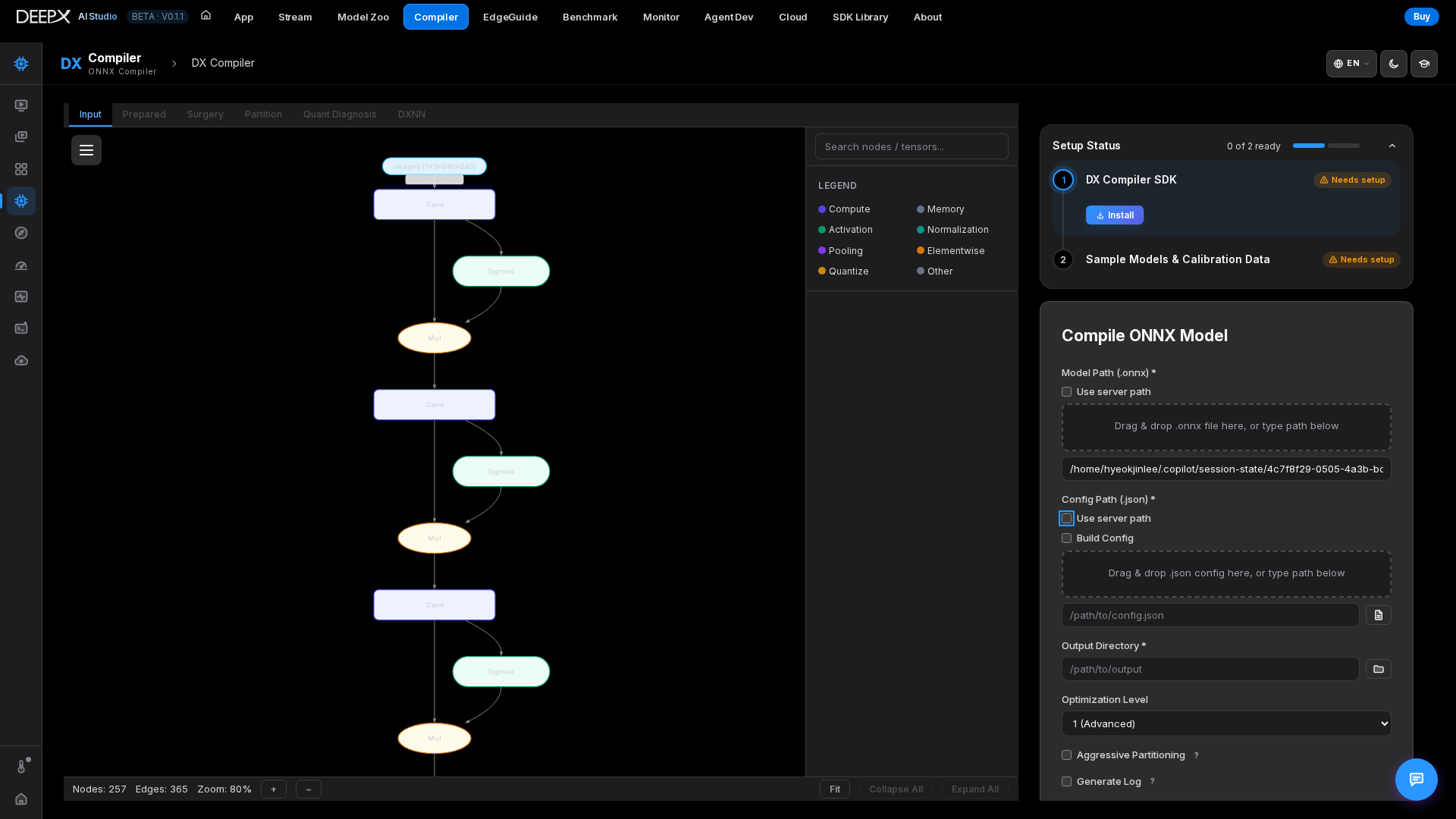
- One-click ONNX → DXNN compilation with a live progress bar and log.
- Build the compile config with a 4-step wizard — no hand-editing JSON.
- Visualize the model graph at each stage (Input → Prepared → Surgery → Partition → DXNN).
- Tune quantization (DXQ presets or automatic Q-Pro) and read a Quantization Diagnosis report that tells you whether the quantized model is healthy.
- Compile only part of a model by picking start/end nodes on the graph.
- Re-quantize a
.qxnnartifact into a new.dxnnwithout re-running everything. - Let an AI agent compile from just a model name / path / URL.
Using it
1. Setup (first run)
In the Setup panel, check the SDK / sample status. If the compiler SDK is missing, click Install; optionally Download sample models + calibration data. The Compile button stays disabled until the SDK is ready. Read the incomplete / locked step's reason, finish that step, and re-check its status before retrying; a loaded model graph alone does not mean the compiler is installed.
2. Choose the model
In Compile ONNX Model, drag & drop an .onnx file (or type its path). Toggle Use
server path to point at a file already on the server.
3. Choose the config
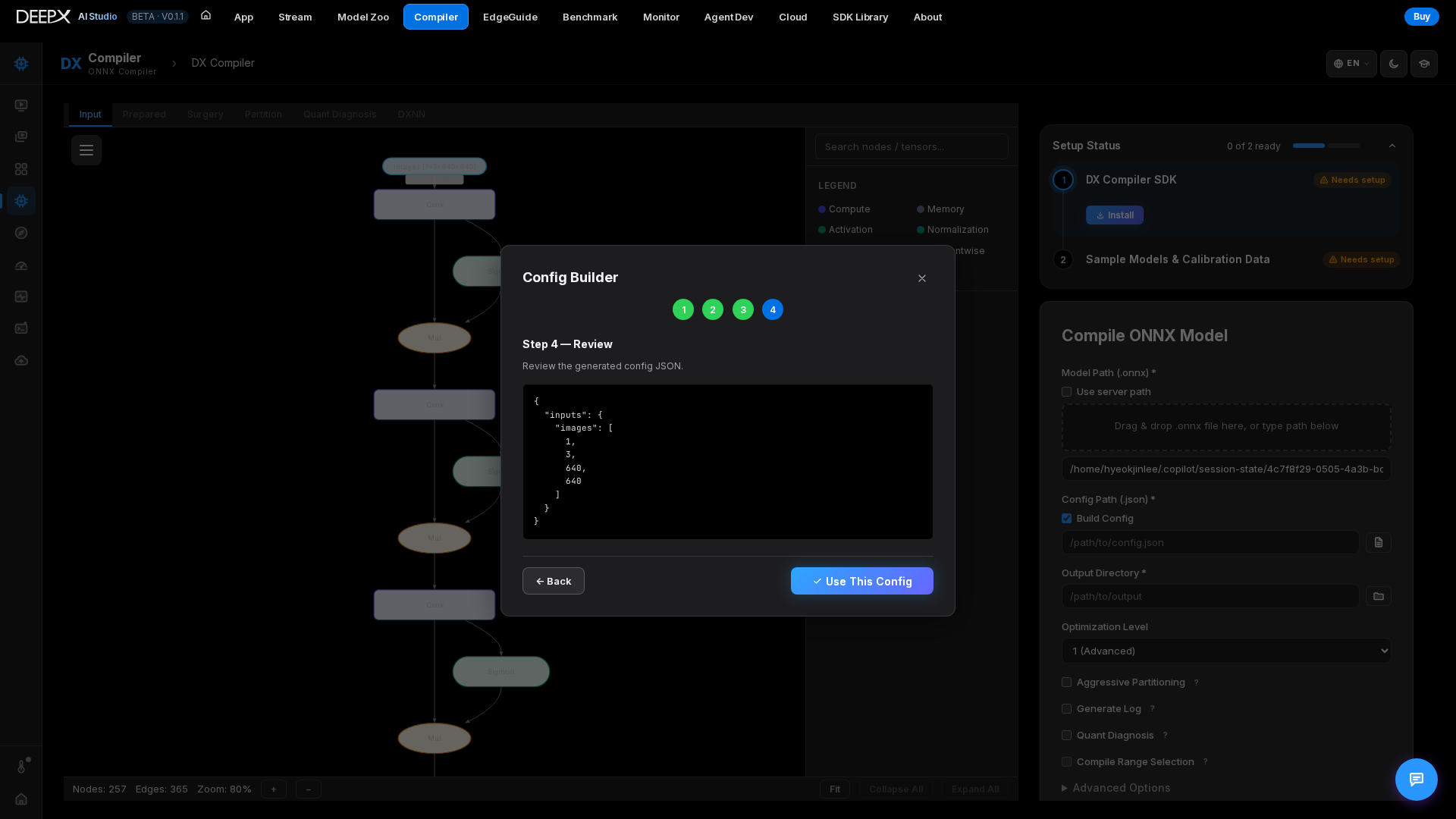
Drag & drop a config .json, or tick Build Config to open the wizard:
Step 1. Input Shapes — Auto Detect from Model, or add input rows manually.
Step 2. Data Loader — Default Loader (real calibration data) or Dummy Loader (random tensors, quick check).
Step 3. Dataset & Preprocessing — dataset path, file extensions, a preprocessing pipeline (resize / normalize / …), calibration samples & method. (skipped for Dummy)
Step 4. Review — review the generated JSON, then Use This Config.
For example, use Default Loader with a dataset folder accessible on the Studio host, check the model's resize / normalization, and review the JSON before applying it. The wizard requires a dataset path for this loader. Use Dummy Loader only for a quick compilation check, not as evidence of calibrated accuracy.
4. Options
Set Output Directory and Optimization Level. Optional toggles: Aggressive Partitioning (more nodes on the NPU), Generate Log, Quant Diagnosis, Compile Range Selection. Under Advanced Options → DXQ Enhancement Scheme, enable quantization presets DXQ-P0…P5 (each with its own parameters) or Auto (Q-PRO) for automatic tuning (Auto is mutually exclusive with the manual presets).
5. Compile
Click Compile — watch the Current Phase progress card and the live Compiler Log; graph tabs unlock as each phase finishes. On success, Save Model Summary downloads an HTML report of the compile.
Key features
- Quant Diagnosis — tick it before compiling to generate a Quantization Diagnosis HTML report (opens in the Quant Diagnosis tab). It shows the model Status, plus Action Items and Evidence (omitted when Status is GOOD). A diagnosis failure does not fail the compile.
- QXNN Resume (re-quantization) — the Resume from QXNN card re-quantizes an
existing
.qxnninto a new.dxnn: change the Recalibration Method (minmax / ema / iqr) and/or apply Q-Pro / DXQ presets, without re-running the full pipeline. Dataset Path (optional) overrides the calibration dataset when needed. For example, open a completed diagnosis, choose Resume from this QXNN →, review the prefilled artifact, choose the new method / presets and optional dataset, then start the resume and inspect its log and new output. A diagnosis report is guidance, not an accuracy guarantee. - Compile Range Selection — after the Prepare phase, use Set Input Nodes / Set Output Nodes on the graph, Calculate Range, then Resume Compilation to compile only the chosen subgraph.
- Graph Viewer — pan / zoom, Fit, Collapse / Expand All,
Ctrl+Fnode search, click a node / tensor for details; a color-coded Legend by node category. - Agentic Auto Compile — give a model name / path / URL, pick an agent (with LLM model and reasoning-effort; only the agents installed on this machine are listed), and it downloads, converts, configures, compiles, and verifies automatically — either fully hands-off or interactive (you can reply mid-run).
- Sample-model picker — the Select Sample Model button fills the Model Path from an already-downloaded sample.
- AI Assistant chat (floating button) explains errors and settings.
If compilation is refused or fails, read the Setup reason or the last failing phase in
Compiler Log, correct the SDK / input / dataset / config, and retry. A diagnosis
failure is separate from compilation success; do not treat a graph preview or an
incomplete job as a produced .dxnn.
Compiler outputs (.dxnn) run in DX App and
DX Stream. Source models come from
DX Model Zoo.