SDK Library & About
Besides the nine tools, the hub hosts two reference views.
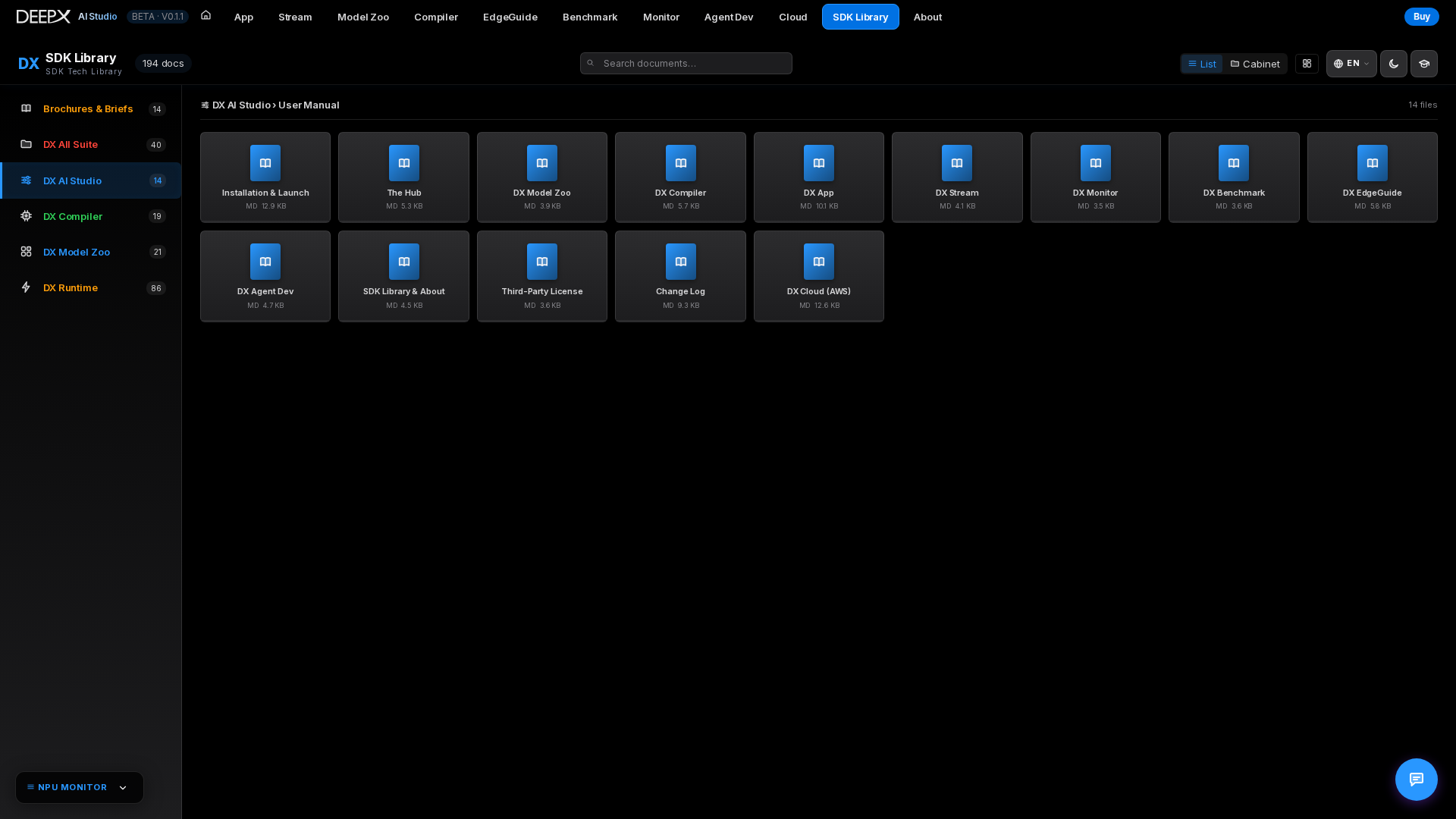
SDK Library
An in-app library of DEEPX documentation and marketing material, reachable from the hub.
- Documentation — renders the DEEPX SDK markdown docs (architecture overview, environment setup, first-model walkthrough, version compatibility, FAQ, and each sub-project's guides) directly in the browser, with images and tables.
- Brochures & Briefs — product brochures and chip / module briefs as in-app PDFs.
- Search & deep links — library-wide search plus in-document find (
Ctrl+F, with next / prev and a match counter). Toggle list / cabinet view, or open the architecture diagram overlay. The open document, view mode, and query are captured in the URL, so a link reopens exactly that state.
For example, select a documentation category, search for runtime, and open a matching
guide. List / Cabinet changes how library entries are displayed; it is not the
document viewer itself. Inside the opened document, use Ctrl+F to find a term and
copy its URL to reopen that document. If an entry is unavailable, check that the
corresponding suite documentation is present; a library entry alone does not install
the SDK or fetch missing source files.
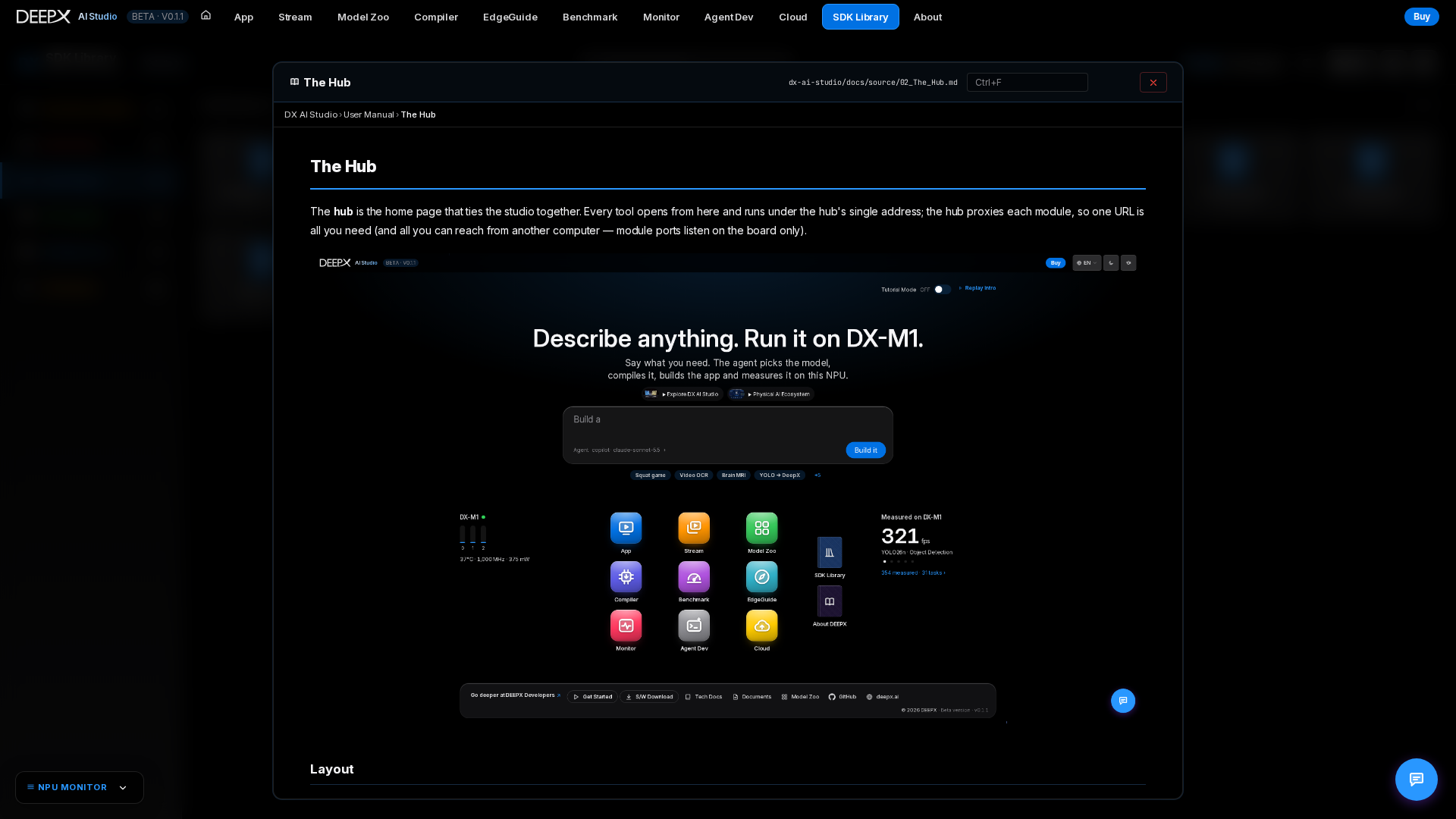
About DEEPX
The About DEEPX page introduces the company behind the studio — the "AI for Everyone & Everywhere" mission, at-a-glance figures (patents, commercial orders, global offices, year founded), and a Developer Hub with quick links to the model catalog, SDK, hardware, and support.
The About DEEPX page presents company and product information down one scrolling page with a sticky section nav (scroll-spy): a Developer section (dev-resource cards, CTAs, and distribution channels), a Company section (vision, milestones timeline, global offices), a Technology section (the DXNN SDK full-stack architecture), and Products, Partners, Awards, and News sections — plus a shortcut to the DEEPX store. Available in all six UI languages.
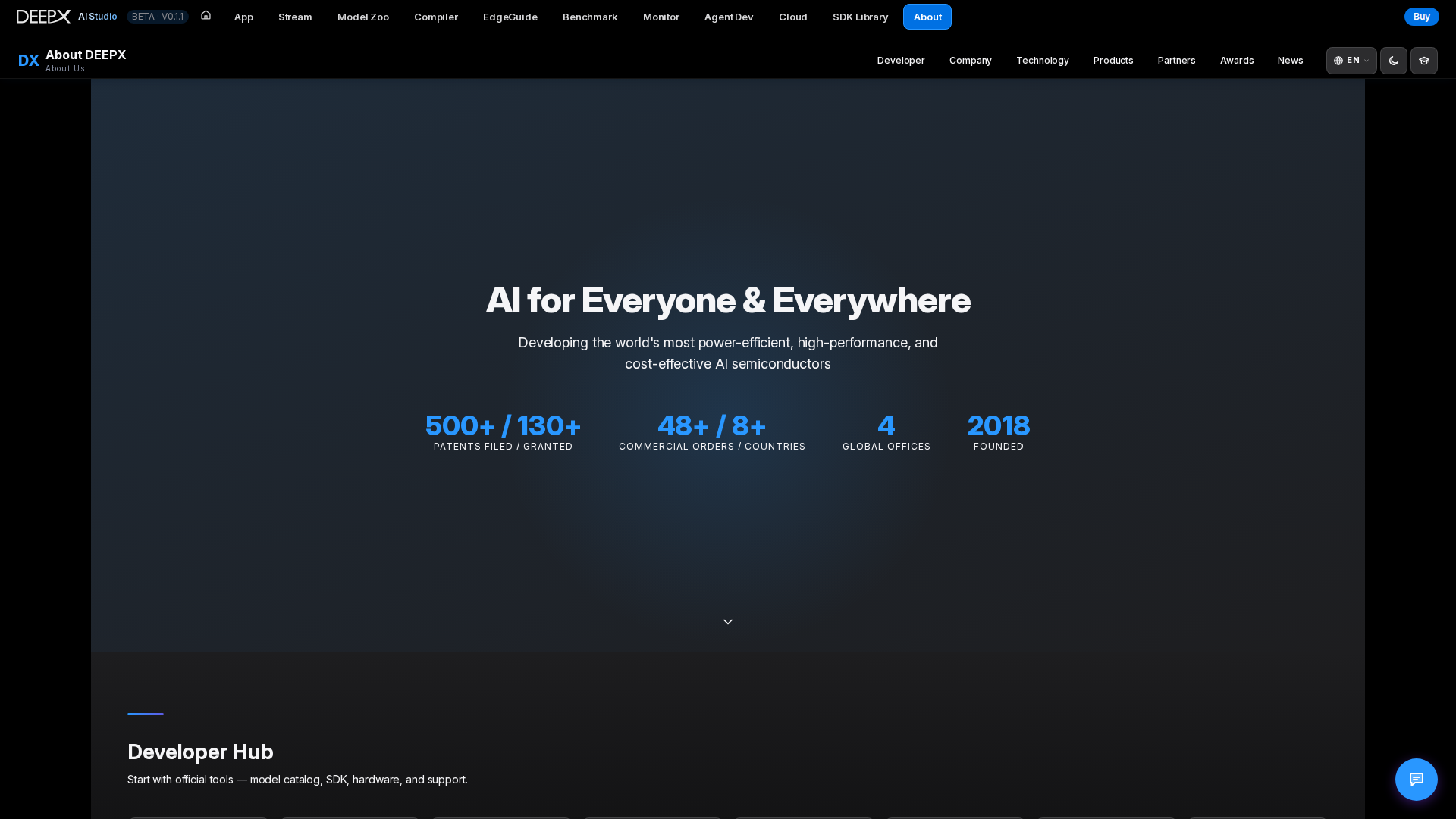
Chat / AI Assistant
The chat assistant (bottom-right button) is available in every DX AI Studio module (not just this one). Click it anytime to ask about DEEPX models, the SDK, the compiler, or how any module works — it draws on bundled DEEPX SDK knowledge to answer.
The line at the top of the chat always says who answers. With nothing set, it answers through
the coding agent you are signed in to (claude, copilot, cursor-agent, codex or
opencode) — no API key needed, and the same Studio agent that Home and Agent Dev use. Note
that a coding agent answers from its vendor's cloud with that account's usage.
Change (or ⚙️) asks one question — Which AI should answer?
- Coding agent on this PC — pick an installed CLI; each shows whether it is signed in, or the command that signs it in.
- My local LLM server — your own Ollama-compatible server (Ollama, LM Studio, llama.cpp …).
- Cloud API key — OpenAI, Anthropic, Google, GitHub Models, or a custom OpenAI-compatible endpoint.
Saving tests the connection first; if it fails, the reason is shown with Save anyway.
Leaving the key field blank keeps the saved key. Back to automatic forgets the choice.
Temperature and Refresh knowledge (re-sync the assistant's SDK knowledge with the latest
.deepx docs) are under Advanced. With no agent signed in and nothing set, the assistant
gives basic built-in guidance and says how to connect an AI.
For example, choose My local LLM server, enter your reachable endpoint, select one of its discovered models and save. If the test fails, check the URL / service and retry; Save anyway stores the selection despite that failure, not proof of a working AI connection. Use Back to automatic to return to the signed-in Studio agent.
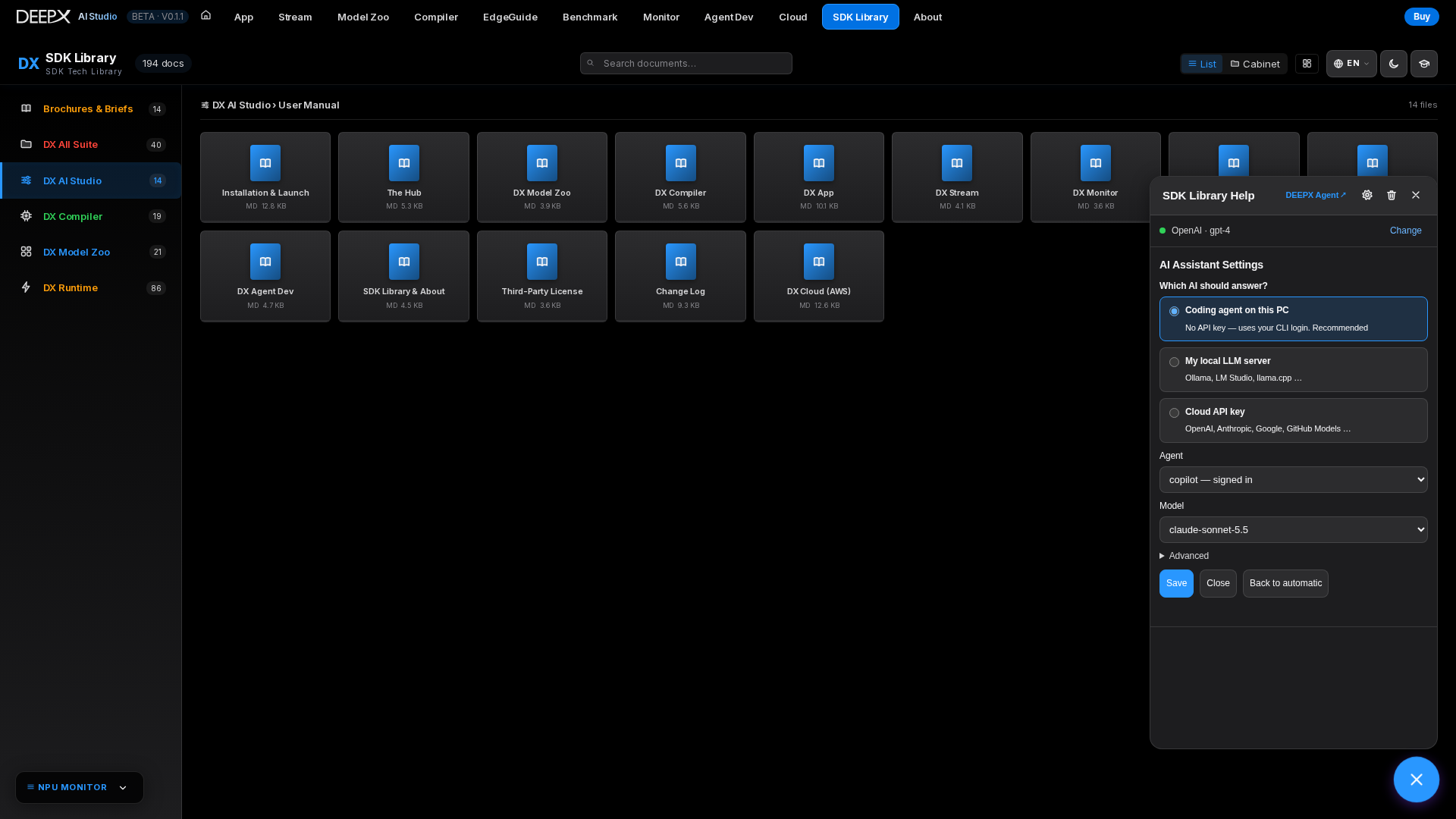
The chat walkthrough (who answers, the one settings question, Refresh knowledge) is in the launcher's onboarding tour, rather than repeated per module.