SDK Version: 2.5.0
DX Stream
Build and run real-time GStreamer vision-AI pipelines on the DEEPX NPU from your browser, with live playback — WebRTC on the board or LAN, MJPEG from another computer or a tunnel.
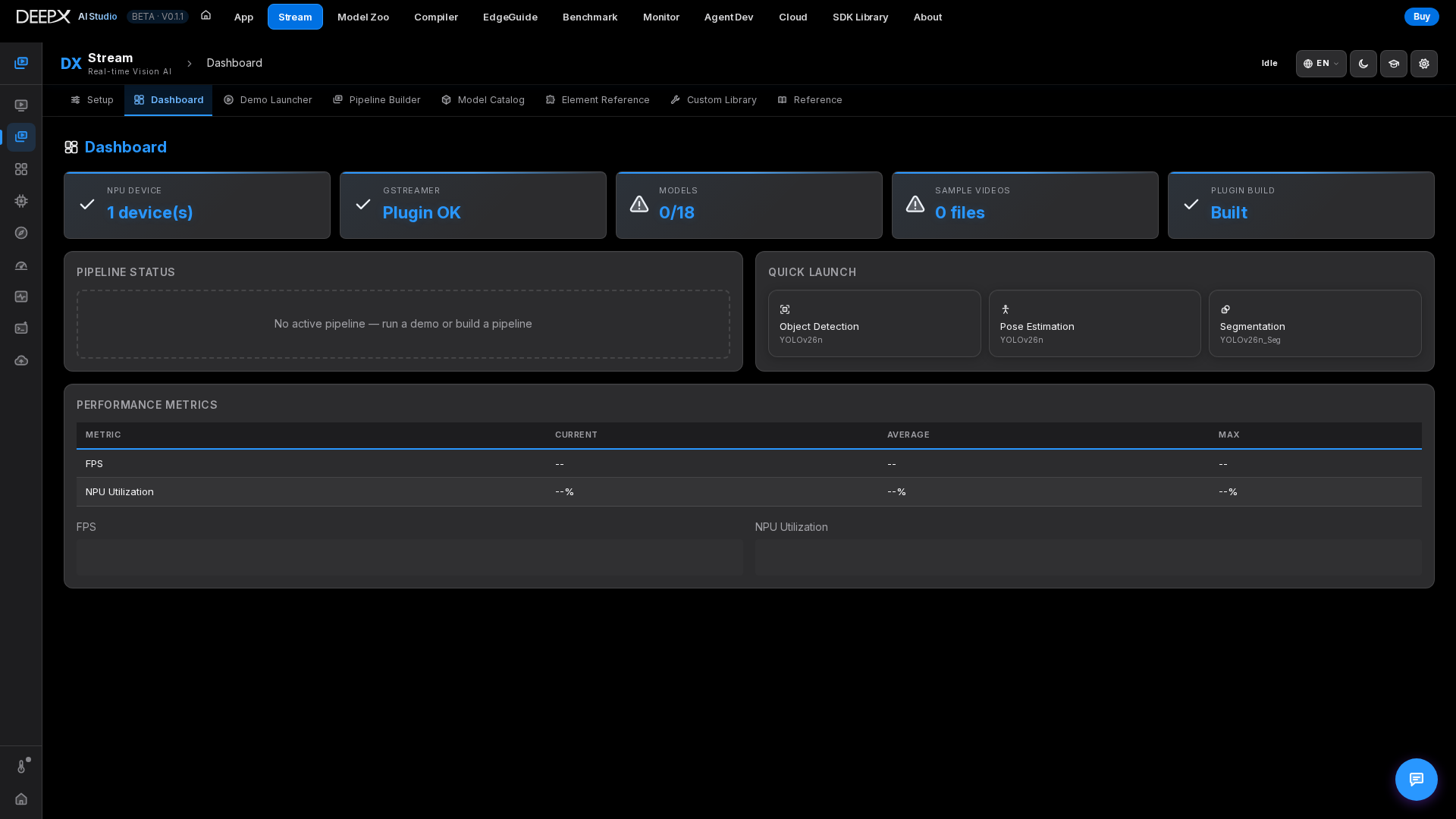
Pages
- Setup — one-click guided install of everything a pipeline needs, in six steps: Build Tools & Libraries, DX-Runtime Dependencies, NPU Linux Driver, GStreamer Plugin Build, Model & Video Download, and WebRTC Dependencies. Run one step or Set up the rest; an environment check and Deep Diagnostics show what's ready.
- Dashboard — module status, quick-launch demo cards, and live FPS / latency / NPU-util metrics with sparklines.
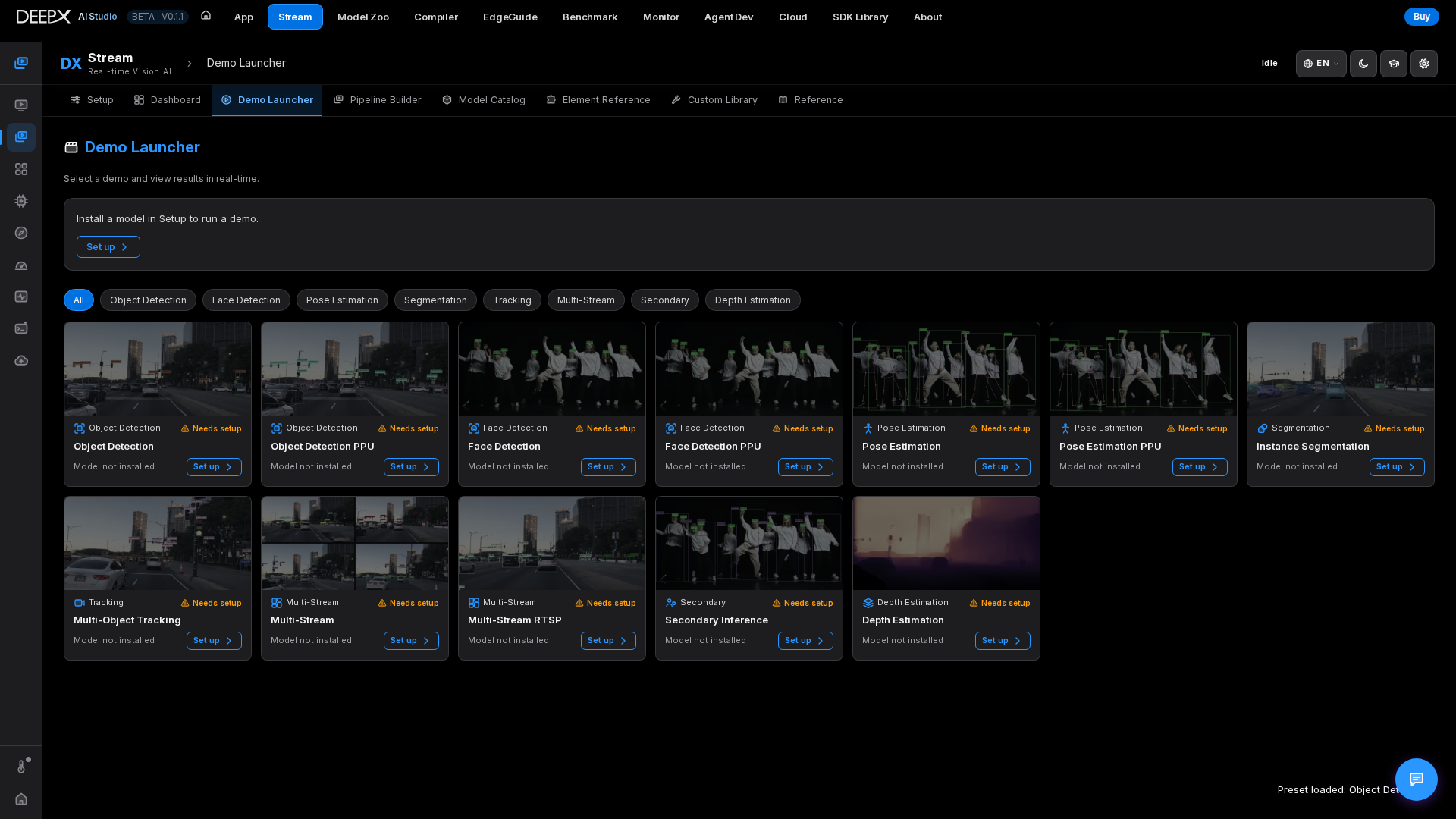
- Demo Launcher — the preset pipelines by category (object / face detection, pose, segmentation, depth, multi-stream, RTSP, …). The chosen demo opens on a stage: pick Playback — Local (WebRTC) / Remote (MJPEG), an RTSP URL where it applies, and Start; FPS, resolution and model are shown beside the video, and Terminal command › gives the equivalent command line. Stop or switch anytime.
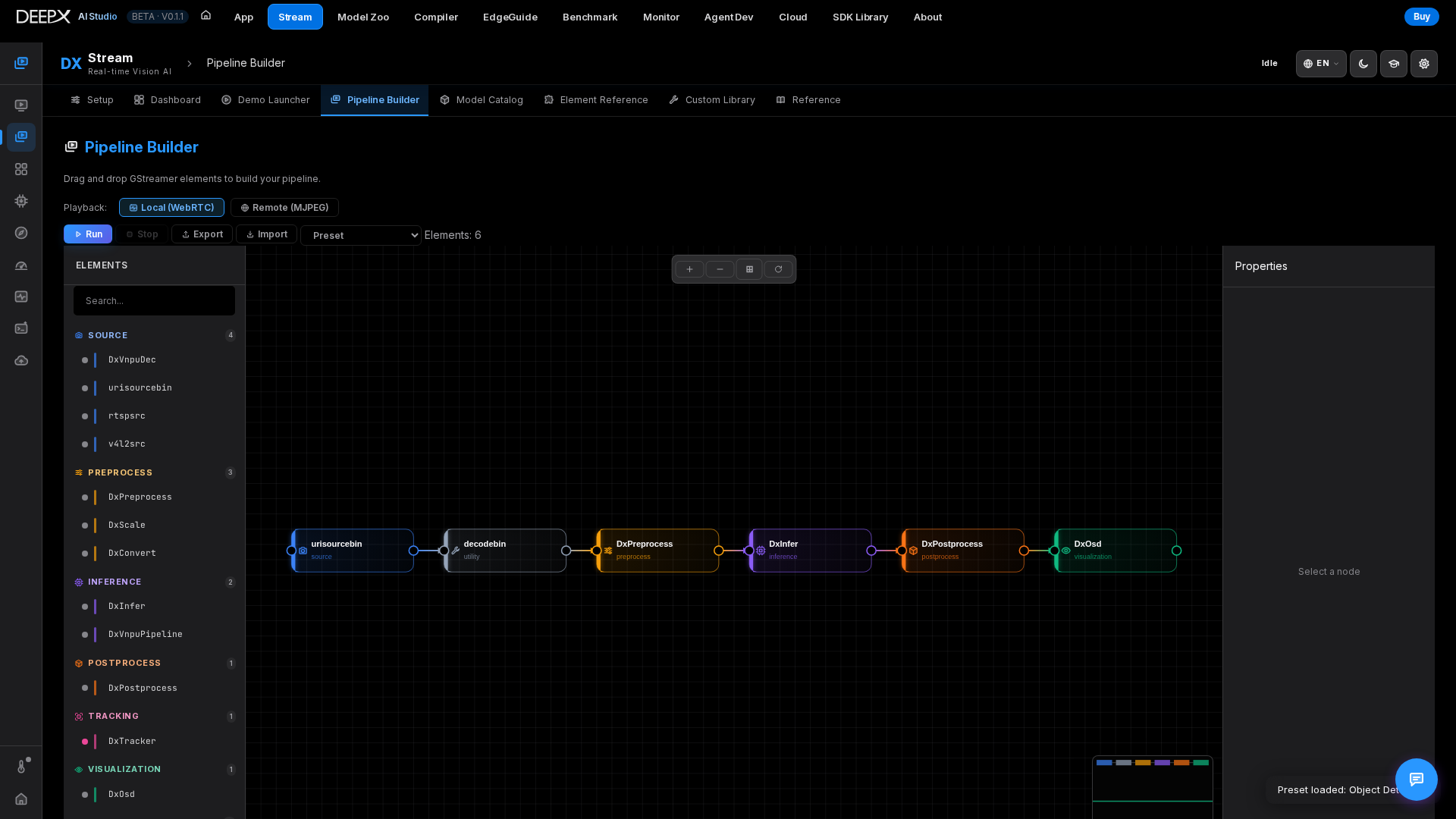
- Pipeline Builder — a drag-and-drop GStreamer editor: pick elements from a searchable
palette, wire them on the canvas, edit properties, then Run/Stop with live playback.
Start from a built-in preset, export / import the pipeline as JSON, and see the
equivalent
gst-launchcommand. Its Playback selector also offers Local (WebRTC) / Remote (MJPEG); this choice is shared with Demo Launcher. - Model Catalog — browse, search, and download models for use in pipelines.
- Element Reference — browse DX Stream's GStreamer elements by category, with their properties and pads.
- Custom Library — upload and build your own C post-processing library (with a build
log), or upload a
.dxnnmodel for DxInfer. - Reference — searchable in-app documentation.
First pipeline
- Open Setup and check the runtime / driver, plugin, models and playback dependencies. Installation is an explicit action and may need administrator access. A ready Dashboard is a summary, not a substitute for the launch checks.
- For a preset, open Demo Launcher, choose a demo and a supported input, select Playback, then Start. Use Remote (MJPEG) through an SSH tunnel; WebRTC requires its system packages and a working peer-to-peer path.
- To change the pipeline, open Pipeline Builder, load a preset, select an element to edit its properties, and check model / input paths on the Studio host. Choose Playback here before Run. Inspect video and reported metrics, then Stop before changing to a different job. JSON export preserves the pipeline definition; it does not package models or install plugins on another host.
Notes
- If a stream fails or stalls, a persistent error is shown (no silent black screen), with retry.
- If runtime validation blocks launch, open Setup → DX-Runtime Dependencies and NPU Linux Driver, inspect the failed check / Deep Diagnostics, and follow the suggested repair. Re-check after an authorized runtime change or requested reboot; retry only when validation succeeds. Unsupported runtime versions are not silently replaced.
- For a missing model / plugin, finish the corresponding Setup step and confirm its status. For a black or stalled remote view, check Playback, connectivity and the error message before restarting the pipeline; browser connectivity alone does not prove inference is running.
- Existing model or video files without Studio completion evidence are unverified, not automatically missing. Run Model & Video Download to verify or complete the asset set. Without a completed video archive inventory, individual file records do not establish that the whole archive is verified.
Related
DX Stream pipelines run the same .dxnn models compiled in
DX Compiler.