Quick Manual - Ubuntu Linux
Revision v1.1 (2026.08.26)
1. Introduction
The DX-M1 (& DX-M1M) is a middle-entry edge NPU designed for high-performance AI acceleration. This manual provides technical guidance for integrating the DEEPX DX-M1 (& DX-M1M) Accelerator Card with the x86 (DEEPX AIBOX) System via PCIe M.2. It covers hardware architecture, installation with thermal management, and the software setup required for AI inference, including sample applications and real-time monitoring via dxtop.
2. System Overview
This chapter provides a technical overview of the DEEPX DX-M1 accelerator and its integration environment.
2.1. Hardware Architecture: DX-M1 M.2
The system utilizes high-performance heterogeneous architecture specifically engineered to support demanding edge AI workloads.
DX-M1 M.2 Accelerator Card Specifications
The DX-M1 is a high-efficiency AI inference accelerator designed for seamless integration into edge computing environments through its optimized internal architecture.
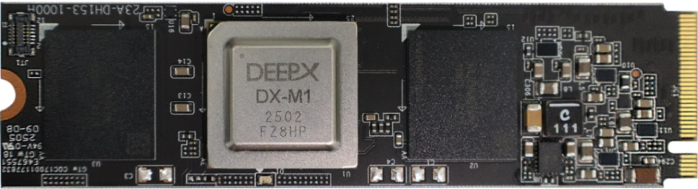
Figure 1. DX-M1 M.2 Architecture
Table. DX-M1 M.2 Technical Specifications
| Features | Details |
|---|---|
| AI Performance | 25 TOPS (INT8) |
| Host Interface | PCIe Gen3 x4 (Supports Gen 1/2/3 & x1/x2/x4) |
| Memory | 4GB LPDDR5 (5600 MT/s) |
| Power Consumption | 5W (Typical) |
| Operating Temperature | 0 ~ 70°C (Commercial) -25 ~ 85°C (Extended) -40 ~ 85°C (Industrial) |
| Thermal Solution | Heatsink (Option) |
| Form Factor | M.2 2280 (M Key), 22 x 80mm |
| OS Support | Windows 11/10 Debian-based Linux (Ubuntu 24.04/22.04/20.04 LTS), Docker Yocto Linux Android |
| AI Frameworks | Ultralytics, PyTorch, TensorFlow, ONNX, Keras |
| System Support | x86 and ARM-based Architectures |
2.2. Hardware Installation and I/O Setup
This section outlines the physical integration of the DEEPX DX-M1 accelerator. Follow these steps to ensure the host system and hardware components are properly configured for a stable edge AI environment.
Step 1. Host System Initial Setup
Complete the power configuration referring to the AIBOX Manual.
- Getting started with your AIBOX: https://developer.deepx.ai/download/?id=530
Step 2. Connecting the DX-M1 M.2 Module
Once the host is prepared, install the DX-M1 M.2 NPU module via the M.2 slot.
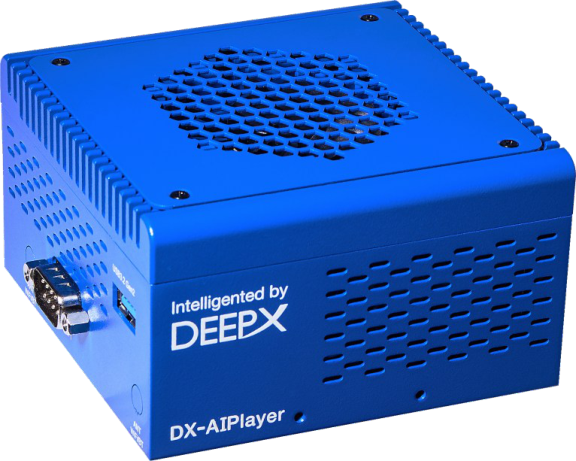
Figure 2. DEEPX DX-M1 AI Accelerator for DEEPX AIBOX
3. Getting Started
This chapter provides a concise guide to configuring the DEEPX DX-M1 development environment. It covers the essential steps from verifying system requirements to executing your first AI inference benchmarks.
3.1. System Prerequisites
Before proceeding with the installation of the driver, ensure the host system is properly configured by following these environment preparation steps.
Step 1. Install Ubuntu Linux 22.04 LTS
- Download and install the OS.
- Link: https://ubuntu.com/tutorials/install-ubuntu-desktop#1-overview
Step 2. Connect to the Internet
- Verify that the AIBOX has an active Internet connection.
- A stable connection is required to access external repositories and download necessary dependencies during the setup process.
3.2. Software Setup and Demo Execution
This section provides a brief guide to installing the necessary drivers and executing AI inference benchmarks using the DX-M1 accelerator.
3.2.1. Install DEEPX M1 Driver and Runtime
Follow these steps to configure the official repository and install the driver libraries. This process involves downloading Linux kernel modules and building the driver; completion time may vary based on network performance.
Step 1. Clone the source from GitHub
Execute the following commands to clone the source code from GitHub.
# Step 1. Clone the DX-Runtime
$ sudo apt-get update
$ sudo apt-get install git
$ git clone --recurse-submodules https://github.com/DEEPX-AI/dx-runtime.git
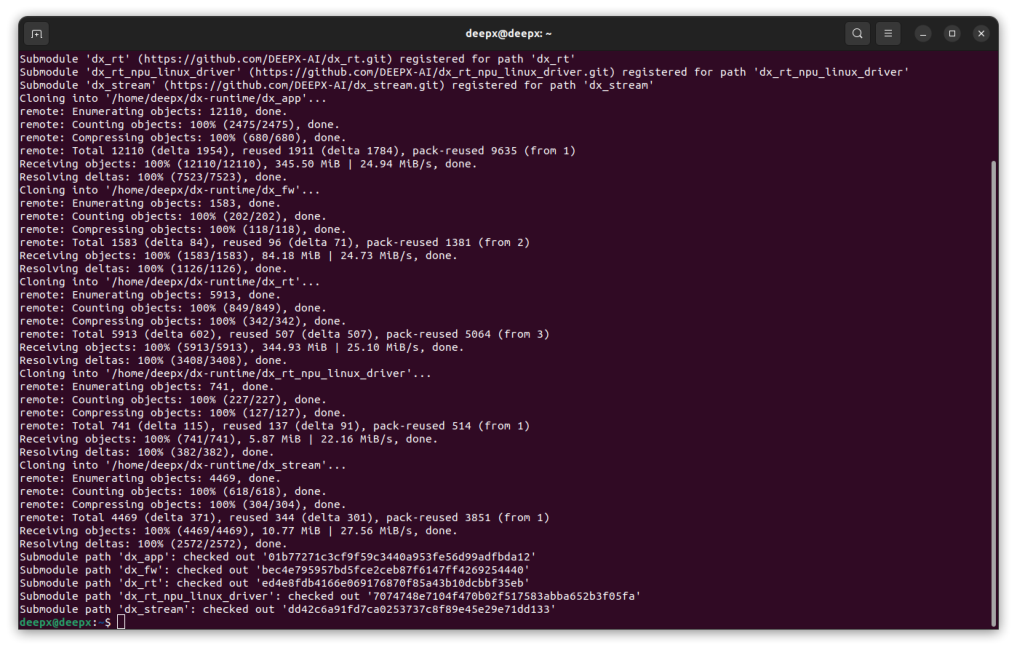
Figure 3. Clone the source
Step 2. Installation of dx-runtime
Update the local package index and install the DEEPX runtime library.
# Step 2. Installation
$ cd dx-runtime
# Option 1: Install dx-runtime with sample applications (dx_app & dx_stream)
$ ./install.sh --all
# Option 2: Custom install (Driver, Runtime, and Firmware separately)
$ ./install.sh --target=dx_rt_npu_linux_driver && ./install.sh --target=dx_rt && ./install.sh --target=dx_fw
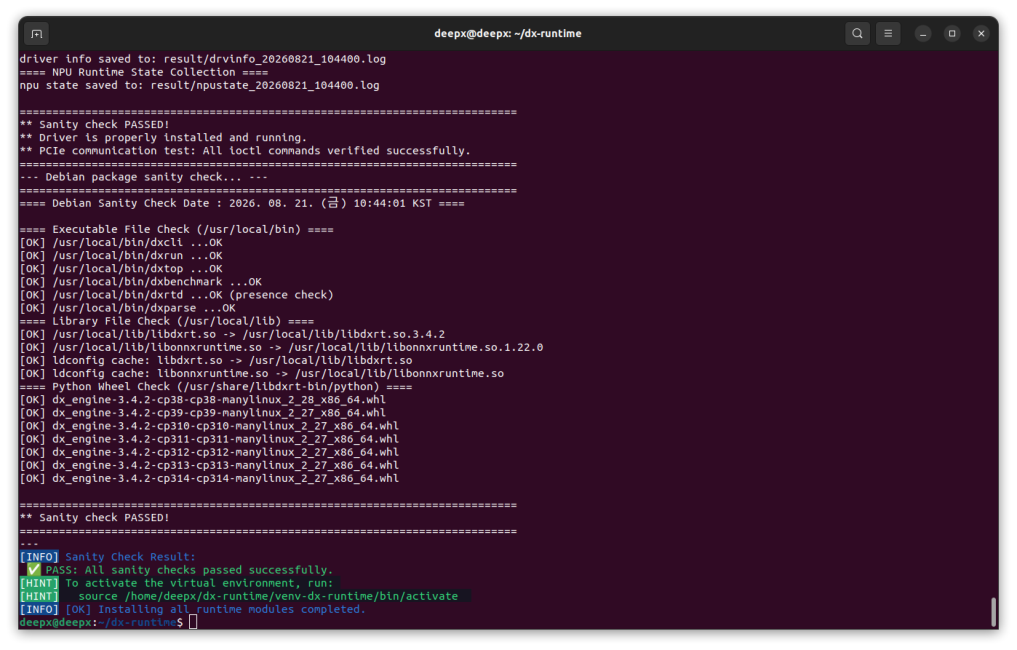
Figure 4. DEEPX Runtime Installation Progress
Step 3. Hardware Status Verification
Confirm that the DX-M1 module is correctly interfaced and recognized by the system.
$ dxrt-cli -s
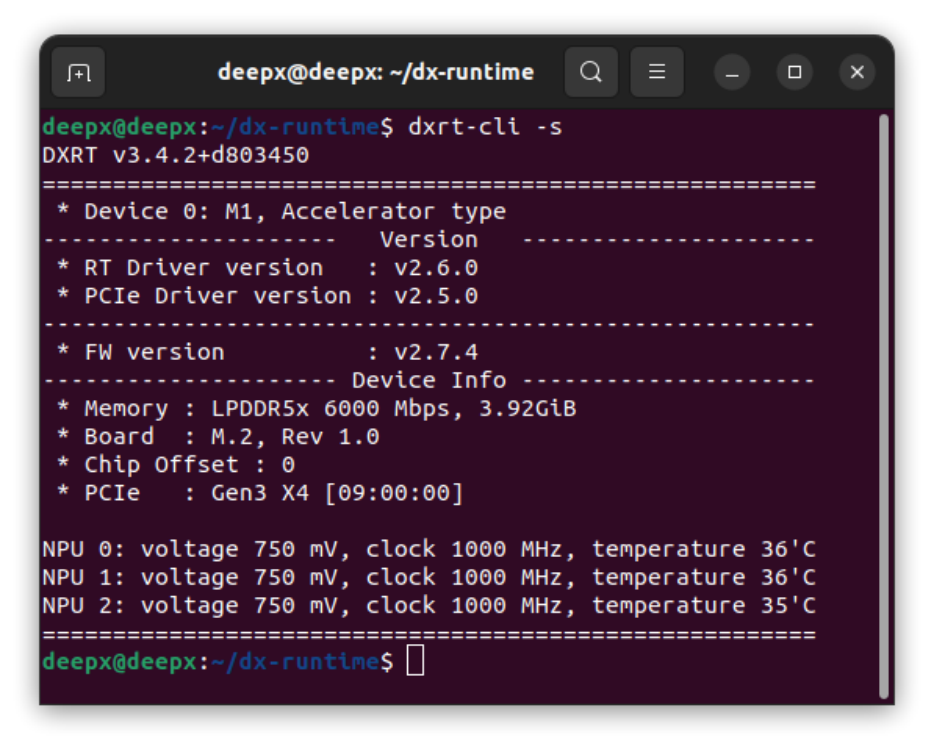
Figure 5. Hardware Verification using dxrt-cli -s Command
3.2.2. [Optional] Firmware Update
To ensure full compatibility between the DEEPX Runtime library and the hardware, the device firmware must meet the minimum version requirements.
Prerequisites for Update
Perform a firmware update if any of the following conditions occur.
- Version Mismatch: The current firmware version is lower than the minimum requirement.
- Execution Error: A
[dxrt-exception] Invalid operationerror occurs during model execution.
Firmware Download
The latest firmware binaries and guides are available at the official DEEPX GitHub repository.
Quick Update Procedure
After downloading the firmware, execute the following commands.
# 1. Stop service
$ systemctl stop dxrt.service

# 2. Update firmware
$ dxrt-cli -u <path_to_fw_bin>

# 3. Restart service
$ systemctl start dxrt.service
Do not power off the device during the update to prevent permanent hardware damage.
3.2.3. Execution of Sample Applications
1. AI Inference Demo (dx_app)
The dx_app demonstrates real-time AI inference capabilities. The execution script automatically handles the acquisition of sample video assets and pre-compiled models.
# Change the directory to dx_app under dx-runtime
$ cd dx_app
$ ./install.sh --all
$ ./run_demo.sh
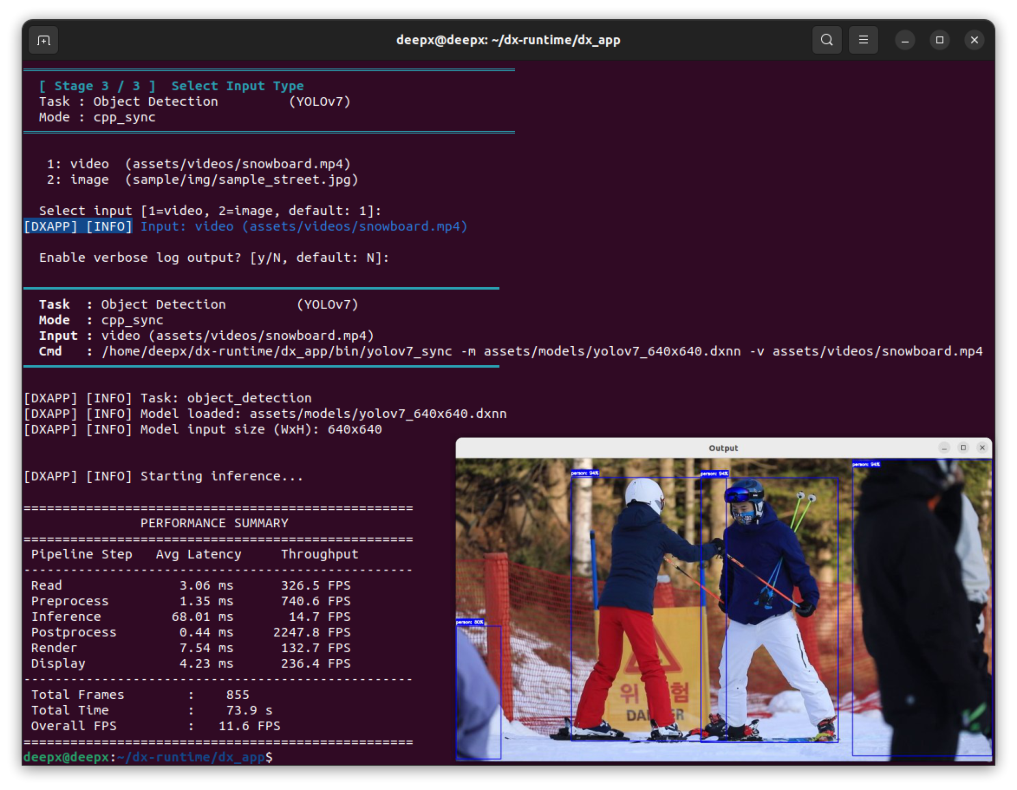
Figure 6. dx_app Demo Output: Terminal Performance Summary (top) and Real-time Object Detection Result (bottom).
2. GStreamer Plugin Demo (dx_stream)
The dx_stream sample is optimized for high-performance video streaming pipelines utilizing the GStreamer framework.
# Change the directory to dx_stream under dx-runtime
$ cd dx_stream
$ ./install.sh
$ ./run_demo.sh
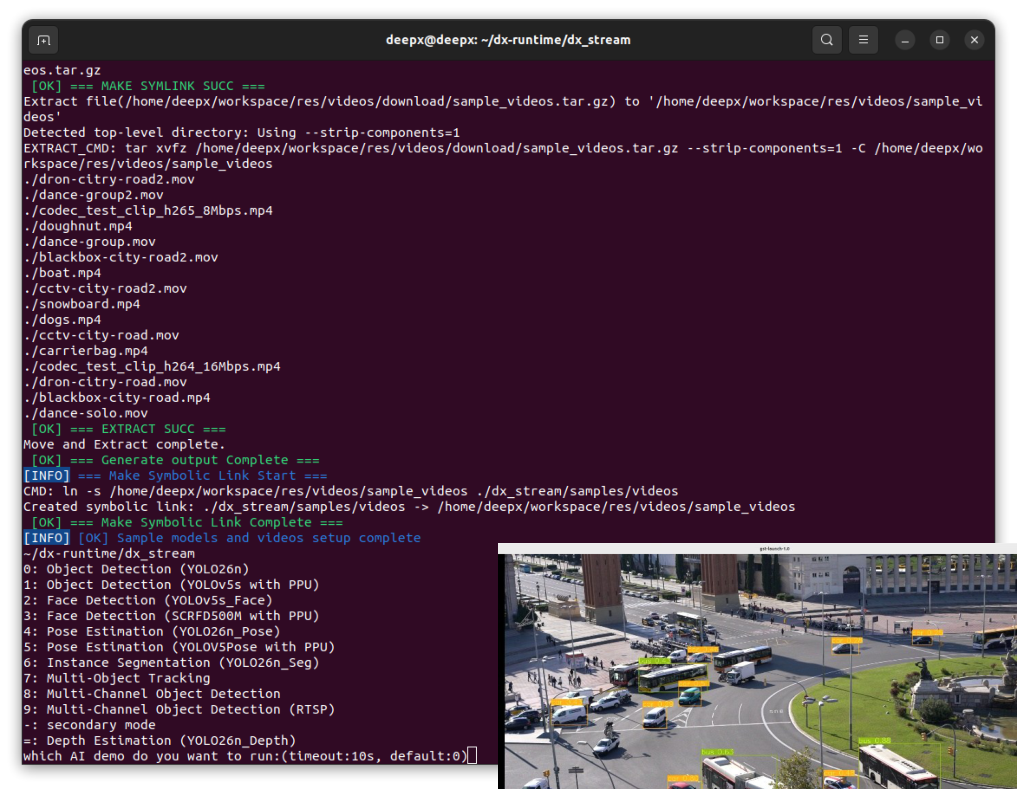
Figure 7. dx_stream GStreamer Pipeline: Plugin menu selection (top) and multi-object detection result (bottom).
3.2.4. System Monitoring
NPU Utilization (dxtop)
The dxtop utility provides a real-time CLI (Command Line Interface) to monitor NPU utilization, temperature, and operational status.
$ dxtop
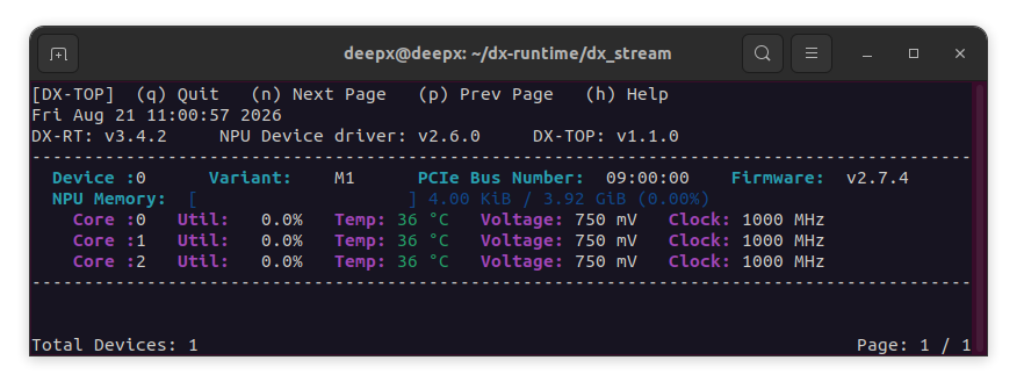
Figure 8. Real-time NPU Resource Monitoring via dxtop